Tweak OpenWRT - By MSSVPN
Tweak OpenWRT - By MSSVPN
Here I collect some additional tweaks that I use with the OpenWRT router.
4 additional tweaks used are:
- PingLoop - This aims to ensure that your router is always connected to the internet, no more idle or disconnect problems.
- Stop Flooding Ping - This avoids the process ID pingloop too much as a result of the task schedule.
- Auto Reboot - Simple only, intended to automatically reboot the router every day at certain hours.
- Auto Clear Buffer/Cache - Aims to provide additional space/free -up RAM usage. This function is to prevent your router from HANG/JEM.
To adapt these 4 tweaks, it's very simple, you just need to do it like this:
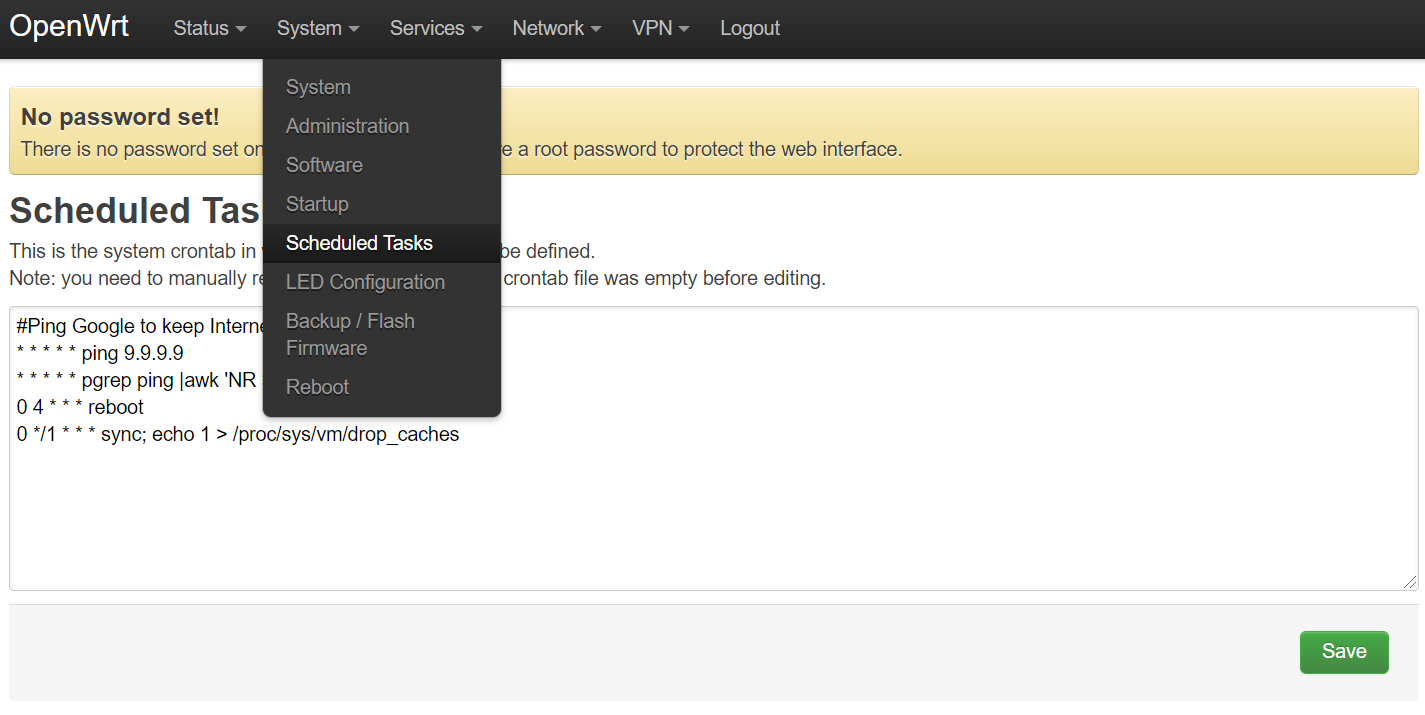
Langkah 1: Login OpenWRT -> Menu System -> Schedule Task
Step 2: Enter the code below into the schedule task box.
#PingLoop
* * * * * ping 9.9.9.9
#Stop Flooding Ping
* * * * * pgrep ping |awk 'NR >= 3' | xargs -n1 kill
#Auto Reboot router everyweek at Sunday 4AM
0 4 * * 0 reboot
#Auto clear buffer/cache to free-up ram usage every 6 hour
#0 */12 * * * sync; echo 1 > /proc/sys/vm/drop_caches
Step 3: Click Save & reboot your router.
A little extra to avoid your System Log being full of ping loop activity reports, I encourage you to change the cronjob report settings. Here's how:
Step 1: Download & install putty into your PC
( https://www.chiark.greenend.org.uk/~sgtatham/putty/latest.html )
Download putty software according to your windows OS type either 64bit or 32 bit. Usually 64Bit.
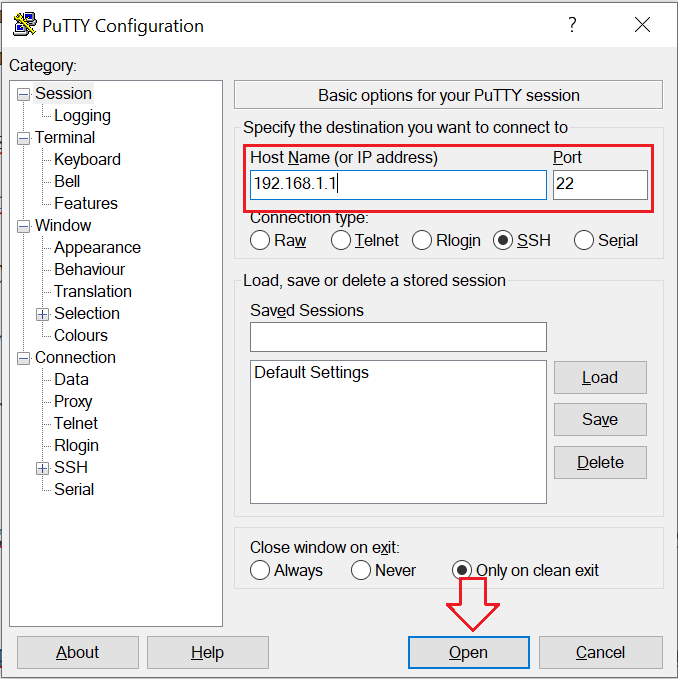
Step 2: Login root router using putty
IP Address: 192.168.1.1
username: root
password: <usually empty unless you have set router password>
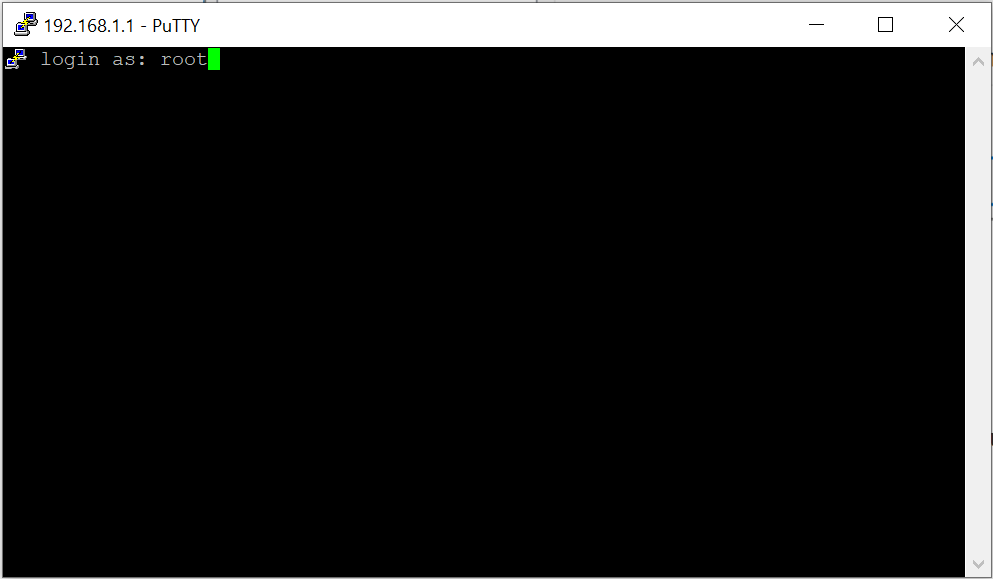
Langkah 3: Jalankan perintah ini dalam putty (copy -> paste -> klik enter):
uci set system.@system[0].cronloglevel="9"
uci commit system
/etc/init.d/cron restart
Itu sahaja bahagian putty. Anda boleh reboot router selepas semuanya selesai.


Comments
Post a Comment